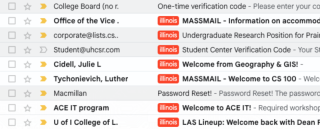
| Managing emails efficiently is one of the biggest challenges in today’s fast-paced digital world. Many of us use multiple accounts—work email, personal email, and sometimes even school or project-specific accounts. The problem? Important messages can get buried, and you might miss notifications when you’re not logged into the right inbox. That’s where Outlook’s redirection feature comes in.Instead of checking multiple inboxes throughout the day, you can set up Outlook to redirect all incoming mail to another account—like Gmail. Unlike simple forwarding, redirection preserves the original sender’s details, which makes it easier to reply directly without confusion. 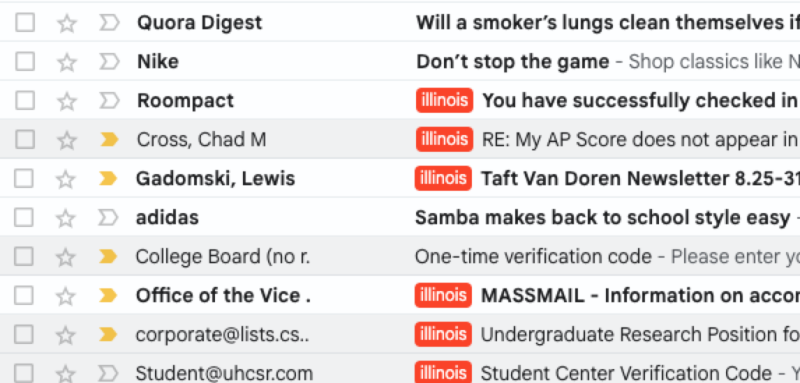
Benefits of Using Redirection- Stay Notified Anywhere – If Gmail is the app you check most often on your phone, redirecting Outlook messages ensures you never miss important updates. You’ll get notifications instantly, no matter which account the email was originally sent to.
- Faster Response Time – Since all your messages land in one place, you can act on them immediately instead of waiting until you log into Outlook. This is especially useful for time-sensitive work emails.
- Cleaner Workflow – You don’t have to juggle between multiple inboxes. All emails arrive in a single inbox, so organization becomes much simpler.
Professional Consistency – Replies still look like they’re coming from the original sender’s account because redirection preserves email headers, unlike some forwarding options that can confuse recipients. 
My ExperienceI set up redirection from Outlook to Gmail, and it has been a huge improvement to my workflow. I always keep Gmail open on my phone, which instantly alerts me to any urgent messages in my Outlook account. This has helped me respond quickly to school, work, and personal emails without missing deadlines or opportunities. How to use “Redirect to”?Click “…” located on top right → Click “Settings” → Click “Mail” → Click “Rules” → Click “+ Add new rule” → Put name in “Name your rule" → Add a condition as “Apply to all messages” → Add an action as “Redirect to" and “your personal gmail address” 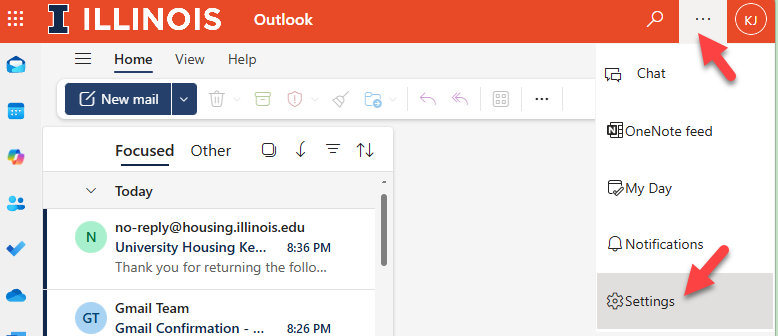
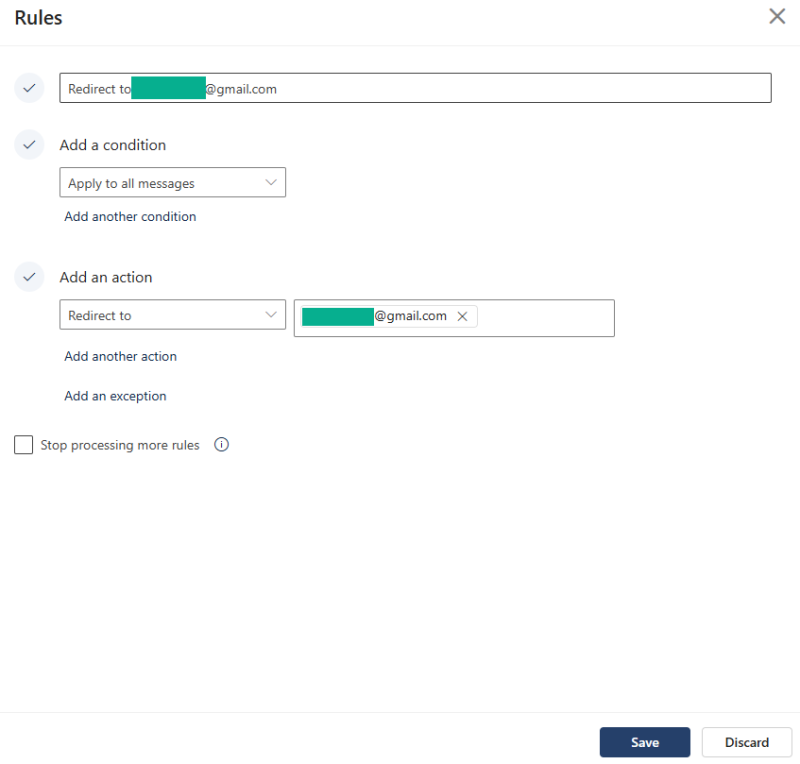
You are all set; now all the email will be automatically redirected to your personal Gmail address. Final ThoughtsIf you use Outlook but rely on Gmail (or another service) as your primary inbox, redirection is one of the simplest and most effective productivity hacks you can set up. It saves time, prevents missed emails, and keeps your communication streamlined. |